Creating a Recipe
Share your culinary creations with the world! This guide will help you create and publish a new recipe on our blogging platform in just a few simple steps.
Step 1: Set Up the Hero Section
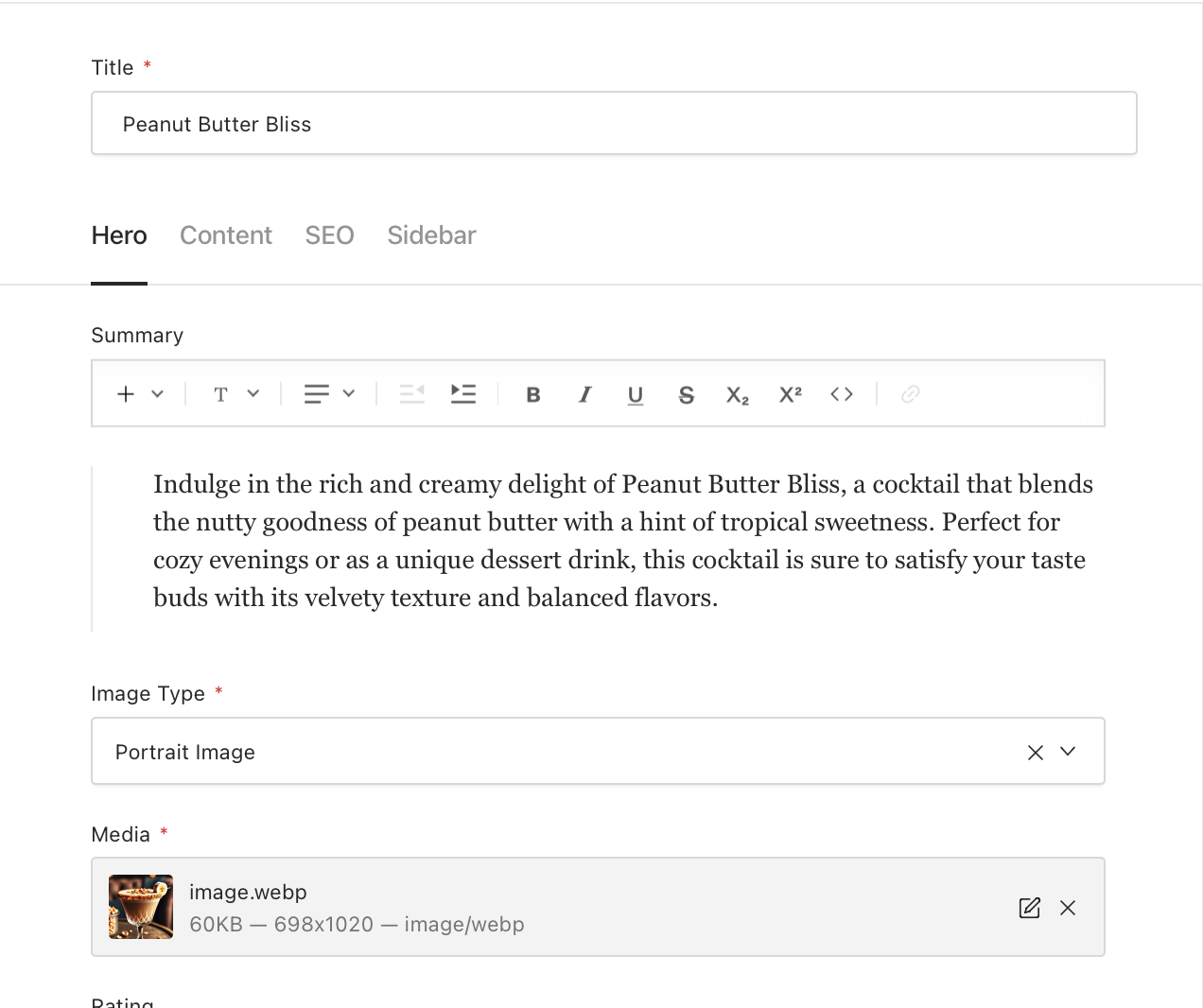
The Hero section is the first thing readers see when they open your recipe. It includes an enticing image and a summary that introduces your dish.
To set up the Hero section:
- Choose an Image:
- Select your hero image type from:
- 3 Column Images: Three images displayed side by side.
- Portrait Image: A vertically oriented image.
- Landscape Image: A horizontally oriented image.
- Click on the upload button or select from the existing images.
- Select an image from your computer.
- Write a Summary:
- In the Summary field, write a brief introduction to your recipe.
- Aim for a few sentences that grab the reader's attention.
- Name
Hero Image- Type
- image
- Description
The main image that represents your recipe.
- Name
Summary- Type
- string
- Description
A brief introduction displayed below the Hero image.
Step 2: Add Ingredients and Preparation Time
Next, list all the ingredients and specify the preparation time for your recipe.
To add Ingredients:
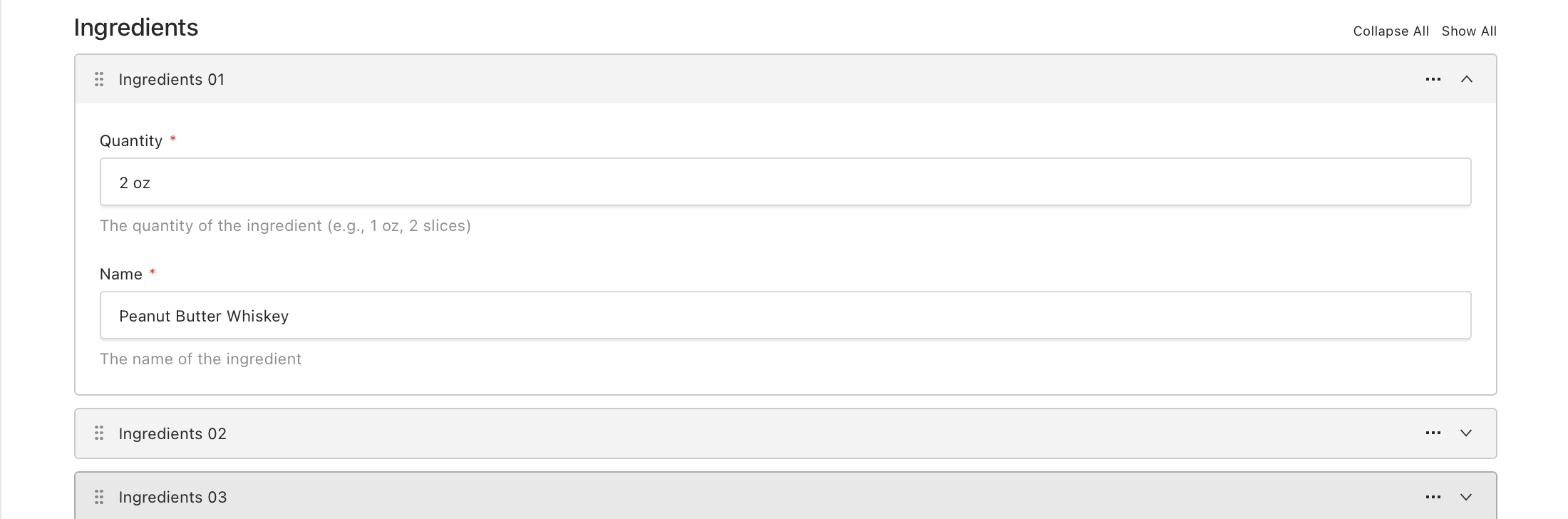
- Navigate to the Ingredients section.
- Click Add New Ingredient.
- For each ingredient:
- Quantity: Enter the amount needed (e.g., "2 cups").
- Name: Enter the ingredient name (e.g., "flour").
- Repeat for all ingredients.
To add Preparation Time:
- In the Preparation Time field, enter the time it takes to prepare the dish in minutes.
- Name
Ingredients- Type
- list
- Description
A list of all ingredients with their quantities.
- Name
Preparation Time- Type
- integer
- Description
Time in minutes needed to prepare the dish.
Step 3: Write Instructions
Now, provide step-by-step instructions on how to prepare the recipe.
Using the Editor:
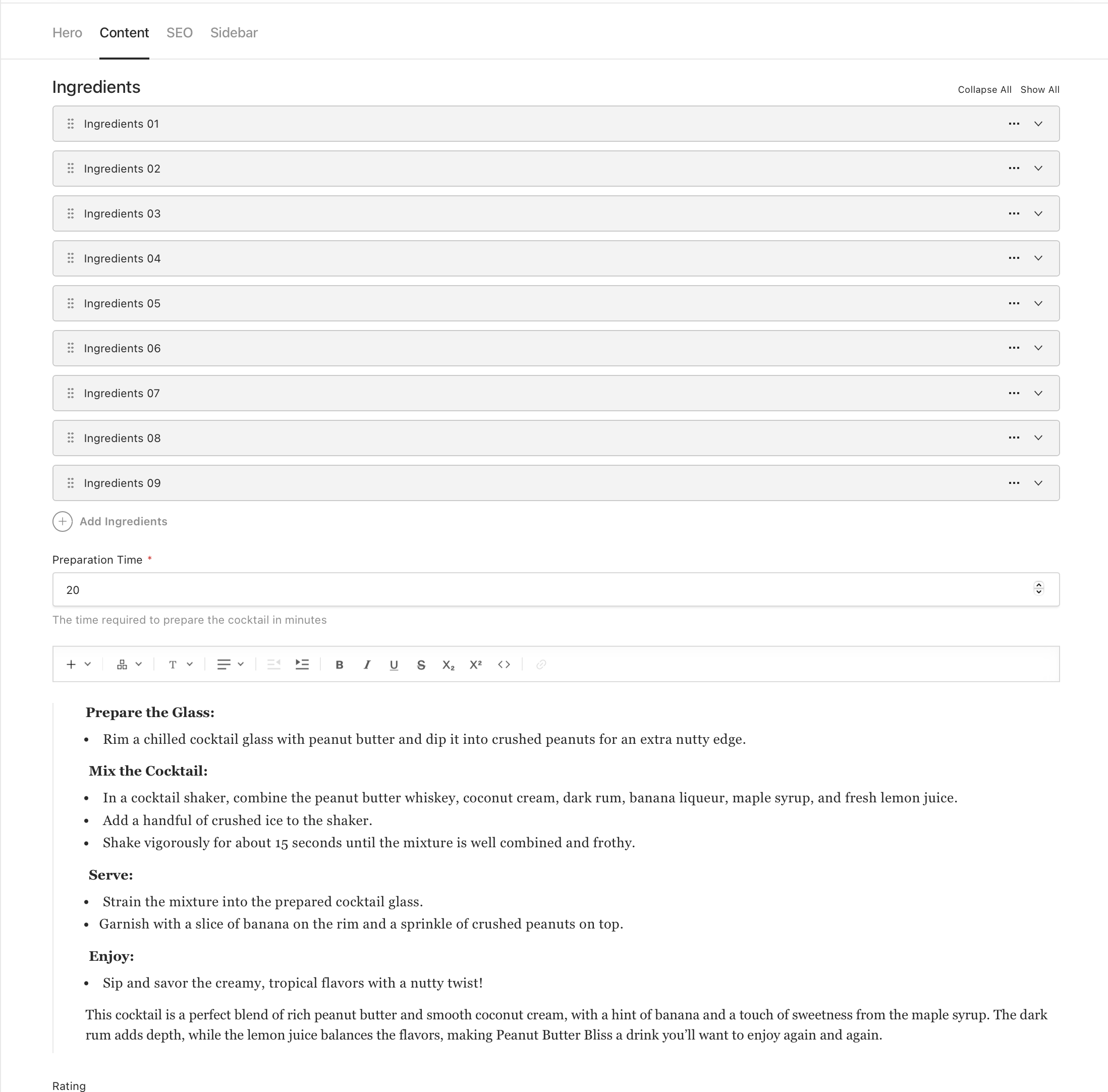
- The Instructions section uses the Lexical Editor.
- You can type your instructions directly into the editor.
- Formatting:
- Use headings, numbered lists, and bullet points for clarity.
- Adding Blocks and Media:
- Type
/to access additional blocks. - Include:
- MediaContent: Place images alongside your instructions.
- MediaBlock: Add full-width images or videos.
- Slider: Create an image slider to showcase steps.
- CTA (Call to Action): Encourage readers to share or comment.
- Type
- Name
Instructions- Type
- editor
- Description
The main content area where you write preparation steps.
- Name
Blocks- Type
- component
- Description
Special content elements to enhance your instructions.
Adding a Block in Instructions
# Type '/' in the editor to insert a block or media
Step 4: Customize the Sidebar (Optional)
Enhance your recipe page by adding elements to the sidebar.
To customize the Sidebar:
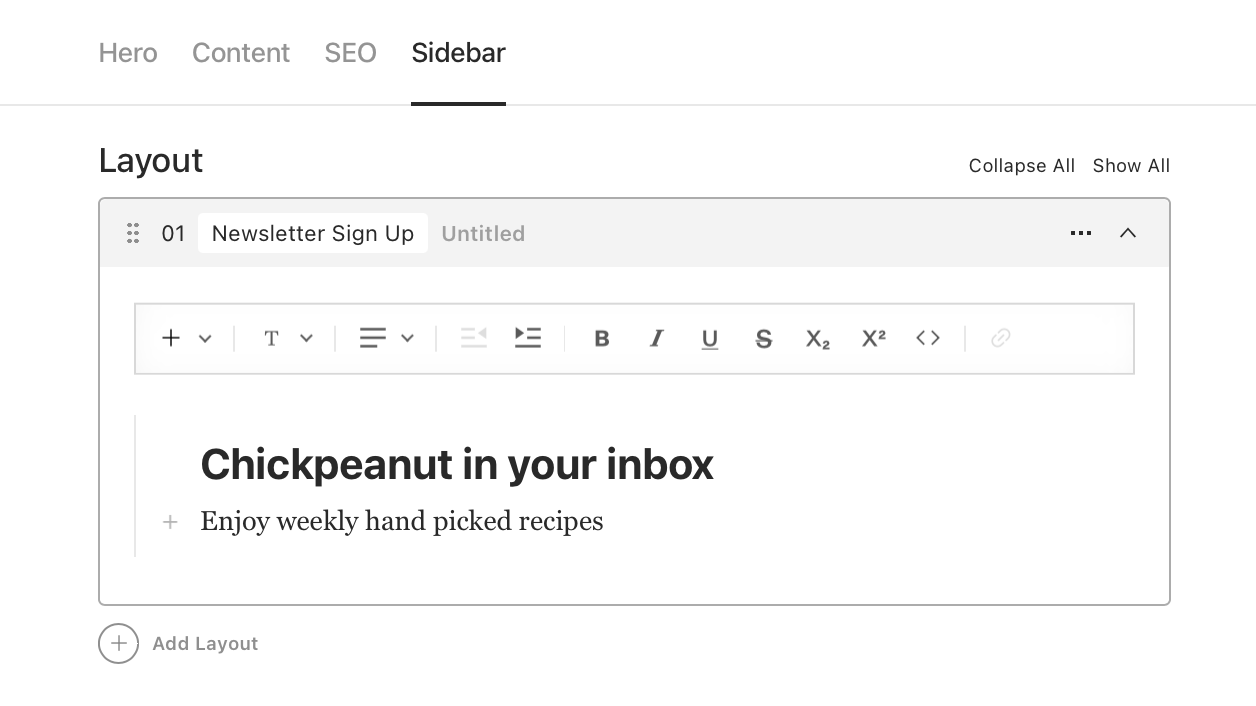
- Navigate to the Sidebar tab.
- Click Add Block.
- Choose from available blocks:
- Posts Archive: Display a list of your other posts or recipes.
- NewsletterCTA: Encourage readers to sign up for your newsletter.
- Ads (iFrames): Insert advertisements or promotional content.
- Configure each block as needed.
- Name
Sidebar Blocks- Type
- component
- Description
Additional elements to display alongside your recipe.
Publishing Your Recipe
After completing all sections:
-
Review Your Recipe:
- Use the Preview function to see how your recipe will look.
- Check for any errors or omissions.
-
Set SEO Options (Optional):
- Go to the SEO section.
- The title, description, and image are auto-filled.
- Customize these fields to improve search engine visibility.
- Name
SEO Title- Type
- string
- Description
The title that appears in search engine results.
- Name
SEO Description- Type
- string
- Description
A brief description for search engines.
- Name
SEO Image- Type
- image
- Description
The image displayed when your recipe is shared.
Optimizing SEO fields can help attract more readers to your recipe.
-
Publish:
- Click the Publish button at the top right corner.
- Choose to publish immediately or schedule for later.
Tips for Creating Great Recipes
- Use Clear Instructions: Numbered steps and simple language make it easier for readers to follow.
- Include High-Quality Images: Visuals of the finished dish and steps enhance appeal.
- Detail Ingredients Accurately: Specify quantities and units for all ingredients.
- Engage with Blocks: Use media and sliders to enrich your content.
If you need any assistance, please visit our Help Center or contact our support team.