Setting Up and Managing Your User Account
This guide will walk you through setting up your user account and customizing your profile.
Getting Started
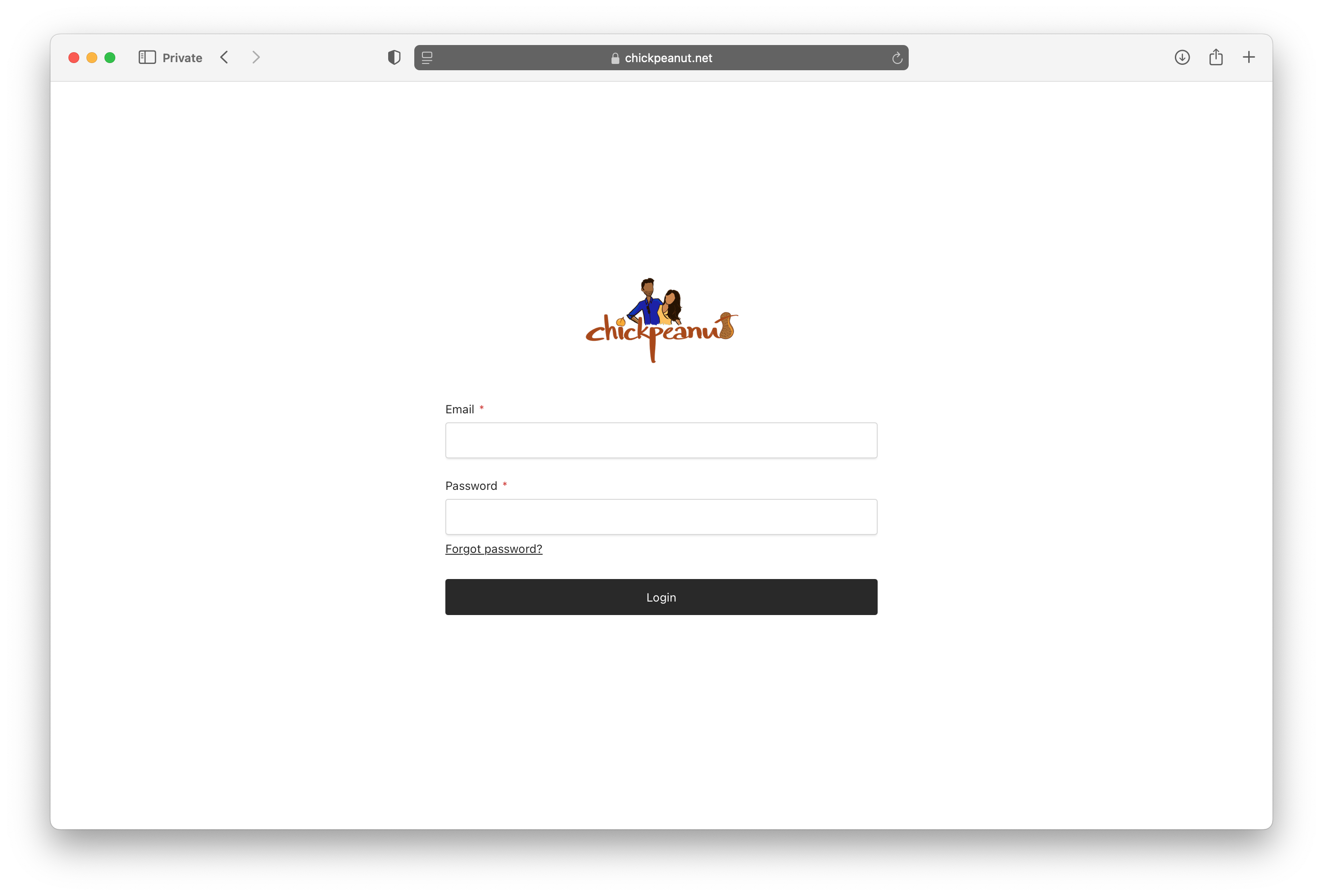
To Login:
- Vist your site and add a
/adminto the end of the URL. - You will be redirected to the login page.
- Enter your email and password to login.
- You will be redirected to the dashboard.
Please ensure you use a valid email address for account verification and password recovery.
Customizing Your Profile
There are multiple ways to access your profile settings:
- Click on the avatar in the top right corner of the dashboard.
- Navigate to the sidebar menu and click on "Profile" or "Account Settings".
- From the main dashboard, look for a "Profile" or "My Account" card or button.
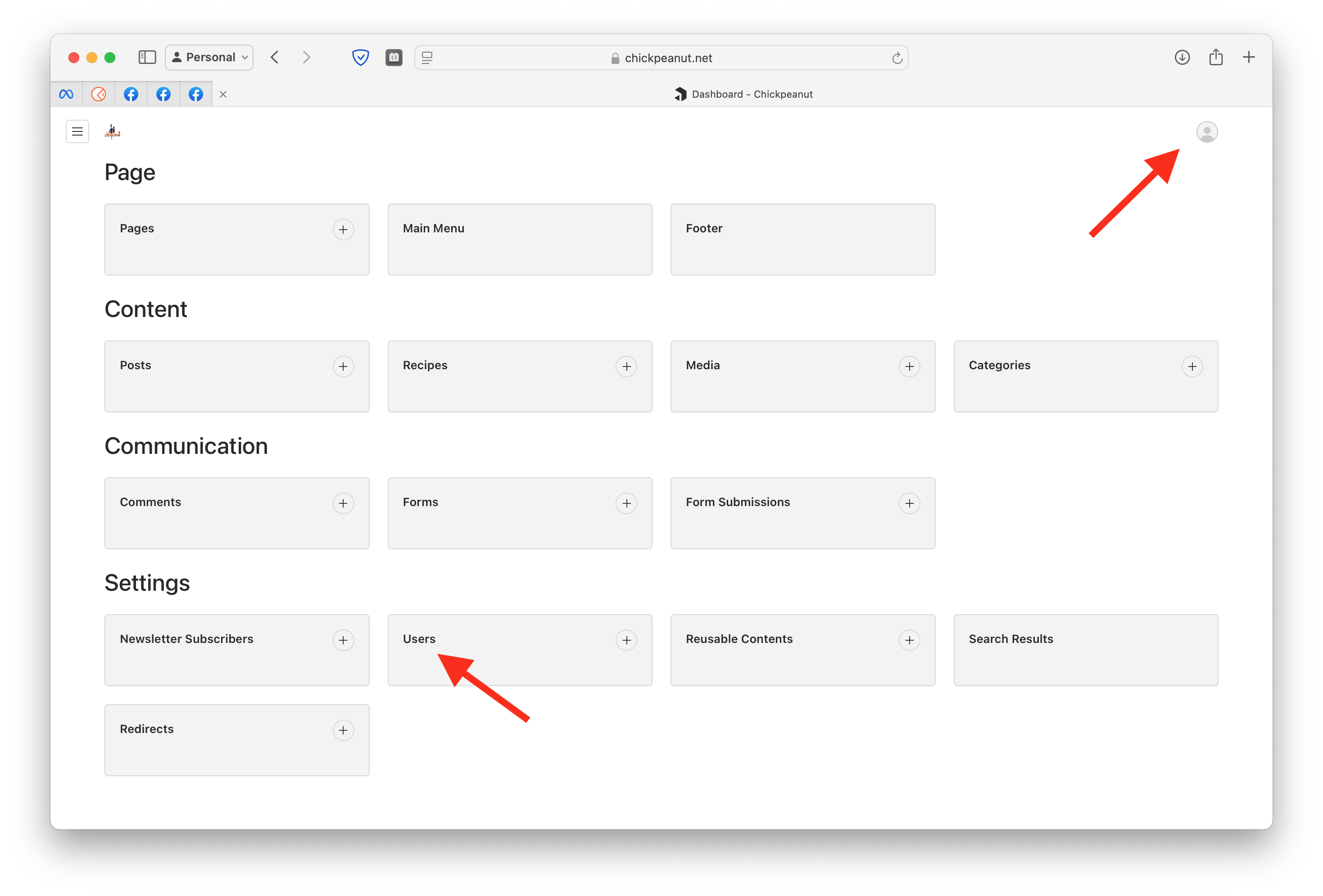
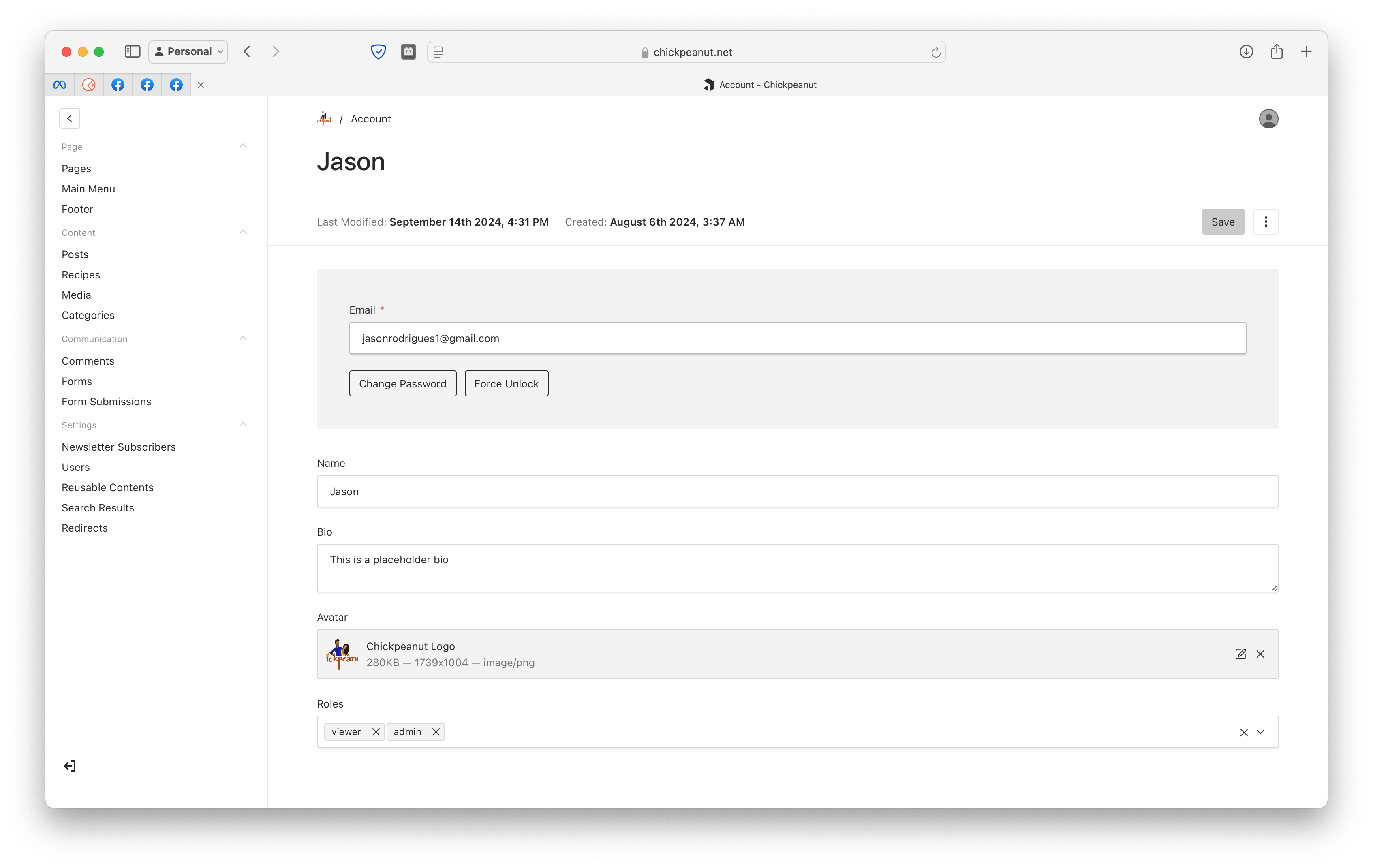
You can customize your profile by adding a display name, bio, and avatar.
- Name
Display Name- Type
- string
- Description
The name shown on your posts and comments.
- Name
Bio- Type
- string
- Description
A brief introduction about yourself.
- Name
Avatar- Type
- image
- Description
Your profile picture displayed on your author card.
Managing User Roles
Our platform supports two types of user roles:
- Name
Admin- Type
- role
- Description
- Can create and publish posts and recipes. - Can manage pages and comments.
- Can assign roles to other users.
- Name
Viewer- Type
- role
- Description
- Can read posts and pages. - Can leave and reply to comments. - Cannot create or publish content.
To change a user's role:
- Navigate to the Users section.
- Select the user whose role you want to change.
- Choose Admin or Viewer from the role dropdown.
Coming Soon Features
We're constantly working to improve your experience on our platform. Here are some exciting features that are currently in development:
Advanced Analytics
Get deeper insights into your content performance with our upcoming advanced analytics tools:
- Audience Demographics: Understand your readers better with detailed demographic information.
- Content Performance Metrics: Track engagement rates, read times, and more for each of your posts.
- Custom Reports: Create tailored reports to focus on the metrics that matter most to you.
- Notifications: Get real-time alerts.
Advanced Analytics will be available to all admin users upon release.

Collaboration Tools
Enhance your teamwork with our upcoming collaboration features:
- Shared Drafts: Work on posts together in real-time with other team members.
- Editorial Calendar: Plan and schedule your content with an easy-to-use calendar interface.
- Review System: Implement a structured review process for your content before publishing.
API Access
For developers and power users, we're working on providing API access to your blog data:
- Custom Integrations: Build your own tools and integrations using our comprehensive API.
- Data Export: Easily export your blog data for backup or analysis purposes.
- Webhooks: Set up automated actions based on events in your blog.
API access will be gradually rolled out, starting with admin users. Stay tuned for announcements about the beta program.
We're excited to bring these features to you soon. Keep an eye on our release notes for updates!
Setting Up Notifications
Notification features are currently in development and not yet released. Stay tuned for updates on this exciting new functionality!
Stay updated by configuring your notification settings:
- Email Notifications: Receive updates on comments, replies, and new followers.
- Push Notifications: Get real-time alerts on your device.
To adjust your settings:
- Go to Account Settings.
- Select Notifications.
- Toggle the notifications you wish to enable or disable.

Privacy Settings
Privacy features are currently in development and not yet released. Stay tuned for updates on this exciting new functionality!
Control who can see your content and interact with you:
- Public Profile: Your profile is visible to everyone.
- Private Profile: Only approved followers can see your profile and posts.
To change your privacy settings:
- Go to Account Settings.
- Select Privacy.
- Choose between Public or Private.
- Name
Public- Type
- privacy
- Description
Your profile and posts are visible to all users.
- Name
Private- Type
- privacy
- Description
Only users you approve can view your profile and posts.
Changing your profile to private will hide your content from non-approved users.
Connecting Social Media Accounts
Social media features are currently in development and not yet released. Stay tuned for updates on this exciting new functionality!
Link your social media accounts for easy sharing:
To connect:
- Go to Account Settings.
- Select Connected Accounts.
- Click Connect next to the social media platform.
By connecting, you can share your posts directly to your social media accounts.
If you have any questions or need help, please visit our Help Center or contact our support team.