Understanding Page Blocks
Building engaging and dynamic pages is easy with our platform's variety of blocks. Each block serves a unique purpose and can be customized to fit your content needs. This guide will explain the functionality, purpose, and provide examples for each block to help you make the most of them.
Call To Action (CTA)
Functionality
- Rich Text Editor: Allows you to add and format text.
- Links: Add buttons or links directing users to internal pages or external websites.
Purpose
The CTA block is designed to prompt your visitors to take a specific action, such as signing up for a newsletter, downloading a resource, or contacting you.
Use Cases and Examples
- Newsletter Subscription: Encourage readers to subscribe by saying, "Join our mailing list for the latest updates."
- Promote a Service: "Ready to start your journey? Contact us today!"
- Downloadable Content: "Get your free eBook now."
Example

Call To Action block prompting users to sign up for a newsletter.
Newsletter Sign Up
Functionality
- Rich Text Editor: Craft compelling messages to encourage sign-ups.
- Email Input Field: Visitors can enter their email addresses directly.
Purpose
To grow your mailing list by providing an easy way for visitors to subscribe to your newsletter.
Use Cases and Examples
- Exclusive Content: "Subscribe to receive exclusive recipes and tips."
- Stay Updated: "Don't miss out on our latest blog posts."
Example

Newsletter Sign Up block inviting visitors to subscribe for updates.
Content Block
Functionality
- Columns: Arrange content in various column sizes:
- One Third
- Half
- Two Thirds
- Full Width
- Rich Text Editor: Add and format text within each column.
- Image Blocks: Insert images alongside text.
- Links: Each column can include links.
Purpose
To create structured and visually appealing content layouts.
Use Cases and Examples
- Services Overview: Use columns to highlight different services.
- Feature Comparison: Compare features side by side.
- Team Members: Showcase team profiles with images and bios.
Example
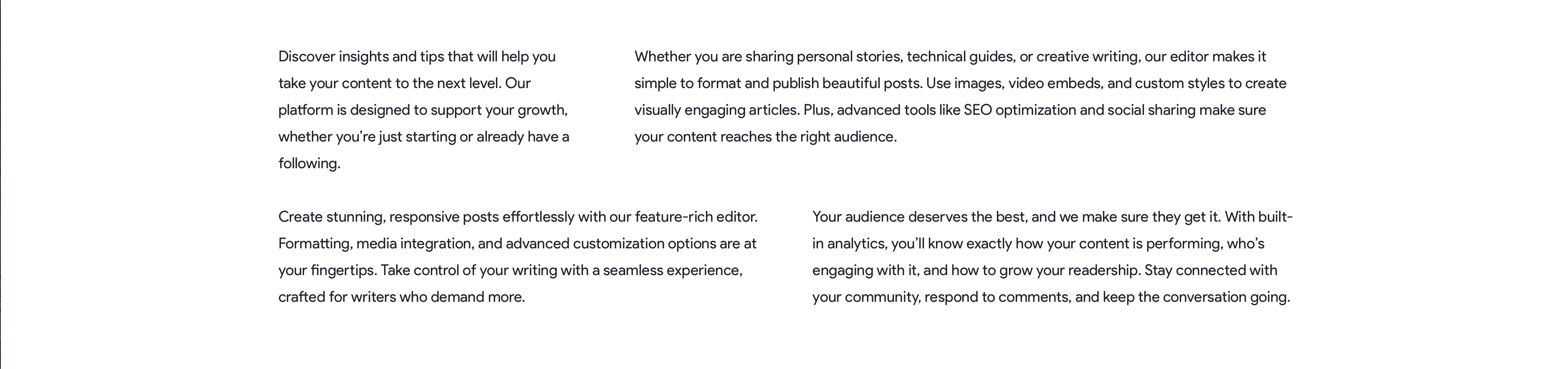
Content Block displaying three columns, each highlighting a different service.
Media Content
Functionality
- Rich Text Editor: Add descriptive text.
- Media Selector: Upload images or videos.
- Loading Priority Setting: Optimize media loading for better performance.
Purpose
To display media alongside text, enhancing the storytelling aspect of your content.
Use Cases and Examples
- Product Descriptions: Show product images next to specifications.
- Tutorials: Include step-by-step images or videos with explanations.
- Case Studies: Combine client photos with success stories.
Example

Media Content block showing an image next to descriptive text.
Media Block
Functionality
- Position:
- Default: Fits within the content area.
- Fullscreen: Spans the entire width of the page.
- Media Selector: Choose images or videos to display.
Purpose
To showcase impactful visuals that grab attention.
Use Cases and Examples
- Banner Images: Introduce sections with a bold image.
- Video Presentations: Embed promotional or informational videos.
- Gallery Highlights: Feature standout photos.
Example
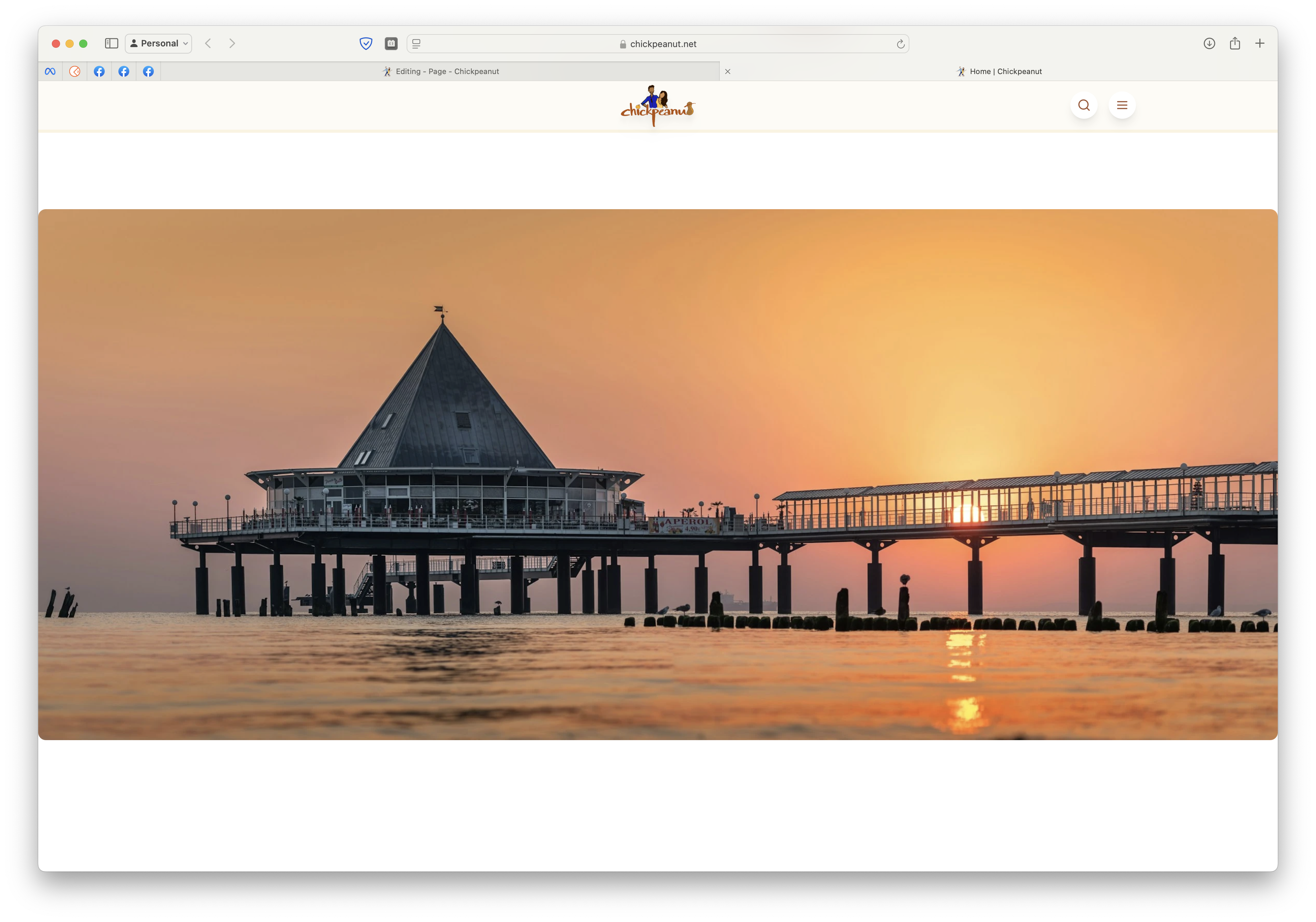
Media Block with a fullscreen image serving as a section banner.
Archive
Functionality
- Type:
- List: Displays content in a simple list.
- Default (Card Grid View): Shows items as cards in a grid.
- With Category Tabs: Organize content under tabbed categories.
- Featured: Highlights one main item with others surrounding it.
- Intro Content: Add introductory text using a rich text editor.
- Populate By:
- Collection: Choose between posts or recipes.
- Categories: Select specific categories to display.
- Limit: Set the number of items to show.
Purpose
To display collections of content in various layouts, helping visitors find more of your work.
Use Cases and Examples
- Blog Post Archive: List all your blog posts.
- Recipe Categories: Organize recipes under tabs like "Desserts," "Main Courses," etc.
- Featured Articles: Highlight top articles prominently.
Example

Archive block displaying posts with category tabs for easy navigation.
Form Block
Functionality
- Form Selection: Choose an existing form or create a new one by clicking "+".
Purpose
To collect information from visitors through custom forms.
Use Cases and Examples
- Contact Form: Allow users to get in touch with you.
- Survey: Gather feedback or conduct polls.
- Registration: Sign up users for events or services.
Example
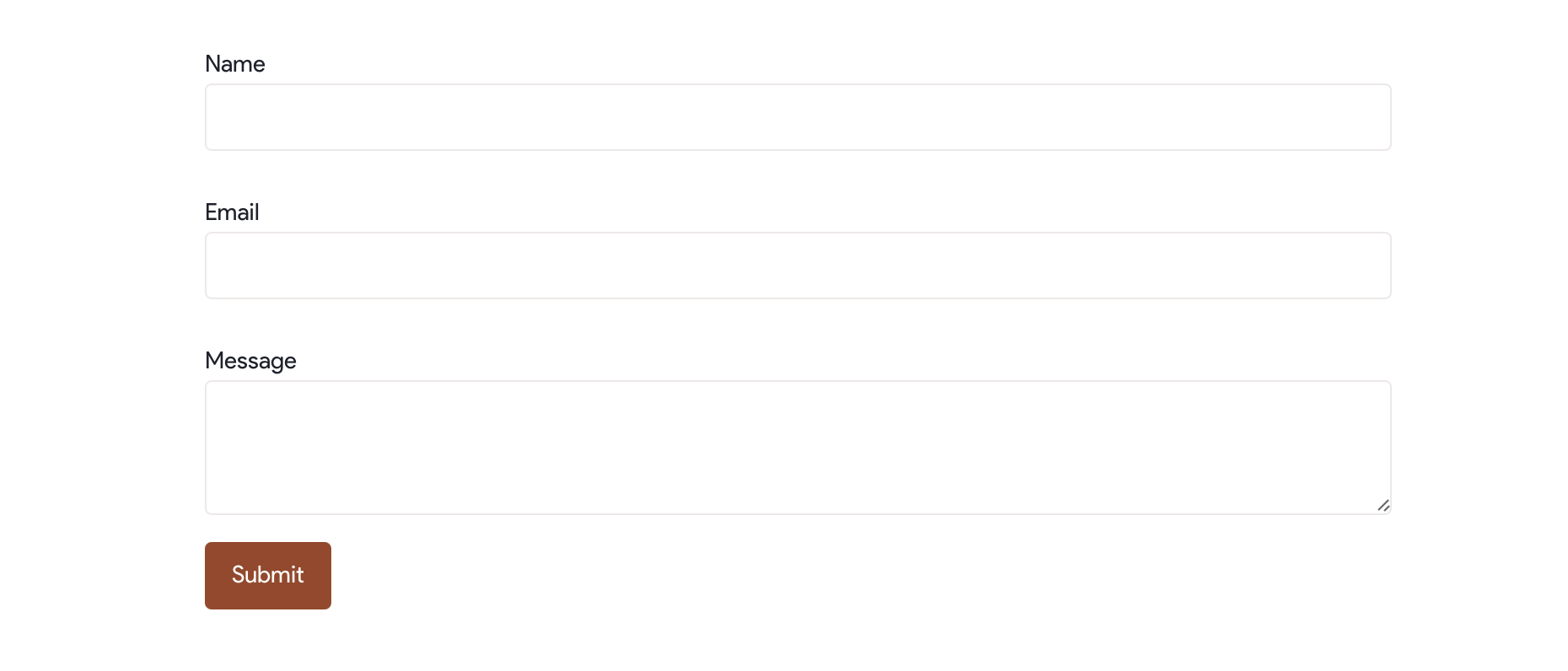
Form Block featuring a contact form for visitors to reach out.
Slider
Functionality
- Image Selection: Choose images to include in the slider.
- Leading Header: Option to add a header above the slider.
Purpose
To display multiple images in an interactive slideshow.
Use Cases and Examples
- Portfolio Showcase: Highlight your best work.
- Event Photos: Share images from recent events.
- Product Gallery: Show different angles of a product.
Example

Slider block showcasing portfolio images with a leading header.
Tabs
Functionality
- Tab Creation: Add multiple tabs and name them.
- Content Selection: Choose items to display within each tab.
Purpose
To organize content in a compact, navigable format.
Use Cases and Examples
- FAQs: Separate questions into categories.
- Product Features: Highlight different aspects under each tab.
- Service Plans: Compare different service levels.
Example

Tabs block organizing content into different sections accessible via tabs.
Iframe
Functionality
- Code Insertion: Paste iframe code directly into the block.
Purpose
To embed external content into your page seamlessly.
Use Cases and Examples
- Google Ads: Display advertisements by pasting the ad code.
- YouTube Videos: Embed videos for viewers to watch without leaving your site.
- Maps: Include interactive maps from services like Google Maps.
- Social Media Feeds: Show live feeds from platforms like Twitter or Instagram.
Example
Iframe block embedding a YouTube video within the page.
Additional Tips
- Combining Blocks: Mix and match blocks to create dynamic pages.
- Customization: Most blocks offer styling options to match your site's design.
- Previewing: Always preview your page to see how blocks appear to visitors.
- Responsive Design: Ensure that your blocks look good on all devices.
If you have any questions or need further assistance, please refer to our Help Center or contact our support team.