Managing Comments
Engaging with your readers through comments is a fantastic way to build a community around your content. However, to ensure quality and relevance, comments need to be managed appropriately. This guide will show you how to approve, delete, and manage comments on your posts and recipes.
Approving Comments
For a comment to be visible on your site, you need to approve it. Follow these steps to approve new comments:
-
Navigate to the Comments Section:
- Log in to your dashboard.
- Click on Comments in the sidebar menu.
-
Review Pending Comments:
- You'll see a list of comments awaiting approval.
- Click on a comment to read its content and assess its appropriateness.
-
Approve the Comment:
- After reviewing, click the Publish Changes button located near the comment.
- The comment will now be visible to all readers on your site.
- Name
Publish Changes- Type
- button
- Description
Approves the comment and makes it publicly visible.

Bulk Managing Comments
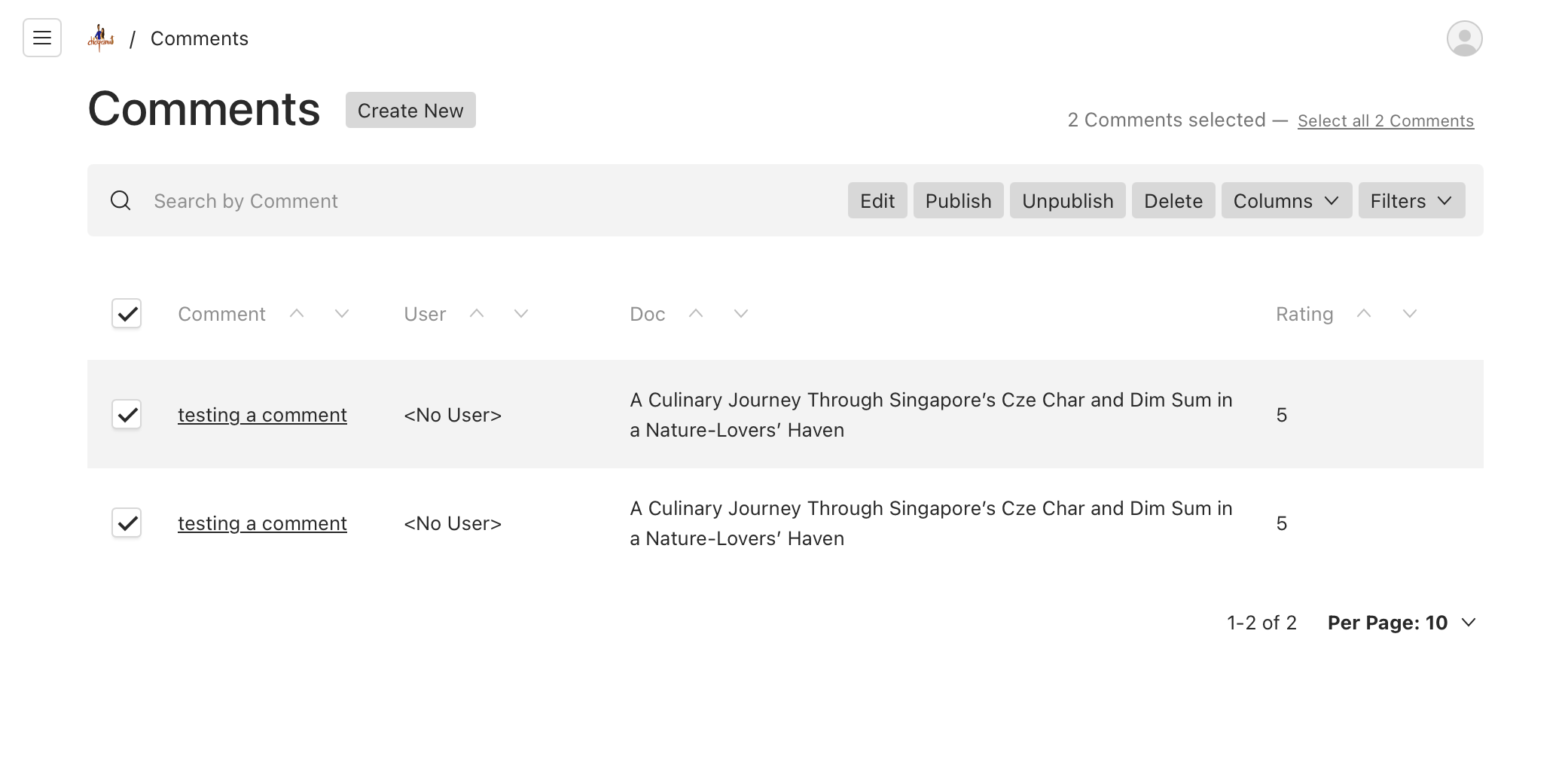
To efficiently manage multiple comments at once, you can use the bulk actions feature:
-
Access the Comments Table:
- In the Comments section, you'll see a table view of all comments.
-
Select Comments:
- Use the checkboxes next to each comment to select multiple comments.
- To select all comments on the page, use the checkbox in the table header.
-
Choose Bulk Action:
- With comments selected, you'll see a toolbar with bulk action options:
- Publish: Approves all selected comments.
- Delete: Removes all selected comments.
- Unpublish: Hides previously approved comments.
- Edit: Opens a bulk edit interface for selected comments.
- With comments selected, you'll see a toolbar with bulk action options:
-
Apply Action:
- Click the appropriate button in the toolbar to apply the chosen action.
- Confirm the action when prompted.
- Name
Bulk Actions- Type
- feature
- Description
Allows management of multiple comments simultaneously.
Deleting Comments
If you need to remove a comment for any reason, you can delete it easily:
-
Locate the Comment:
- In the Comments section, find the comment you wish to delete.
- This can be a published comment or one awaiting approval.
-
Delete the Comment:
- Click on the three dots (⋮) near the Publish Changes button associated with the comment.
- Select Delete from the dropdown menu.
- Confirm the deletion when prompted to permanently remove the comment.
- Name
Delete- Type
- action
- Description
Permanently removes the comment from your site.

Email Notifications
To keep you informed, our platform sends email notifications when new comments are made on your posts or recipes.
-
Stay Updated:
- Check your email regularly to see new comments.
- Emails will contain the comment content and a link to approve or delete it.
-
Email Settings:
- Ensure your email address is up-to-date in your Profile Settings.
- If you're not receiving emails, check your spam folder or email filters.
- Name
Email Notifications- Type
- feature
- Description
Alerts you to new comments requiring your attention.
Promptly approving comments keeps the conversation flowing and engages your readers.
Managing Nested Comments (Replies)
Readers can also reply to existing comments, creating nested comment threads.
-
Approve Replies:
- Replies also require your approval to be visible.
- Follow the same steps as approving standard comments.
-
Monitor Discussions:
- Keep an eye on comment threads for any inappropriate content.
- Engage in discussions by replying to comments yourself.
Tips for Effective Comment Management
-
Set Clear Guidelines:
- Consider creating a comment policy outlining acceptable behavior.
- Display the policy prominently to inform readers.
-
Regular Moderation:
- Check the comments section regularly to approve new comments.
- Prompt moderation helps maintain a positive community.
-
Engage with Your Audience:
- Respond to comments to foster engagement.
- Thank readers for their feedback or answer their questions.
Troubleshooting
-
Not Receiving Email Notifications:
- Verify your email address in Profile Settings.
- Check your spam or junk folder.
- Ensure that your email provider isn't blocking our notifications.
-
Comments Not Appearing After Approval:
- Refresh your website to see the latest changes.
- Clear your browser cache if necessary.
- Contact support if the issue persists.
For further assistance, please visit our Help Center or contact our support team.